
After Installation
Welcome to Vostok Linux
Congratulations — you've successfully installed Vostok Linux. You're now part of something built with care, independence, and respect for your freedom as a user.
From this moment on, this is your system. Minimal by default, infinite in possibility.
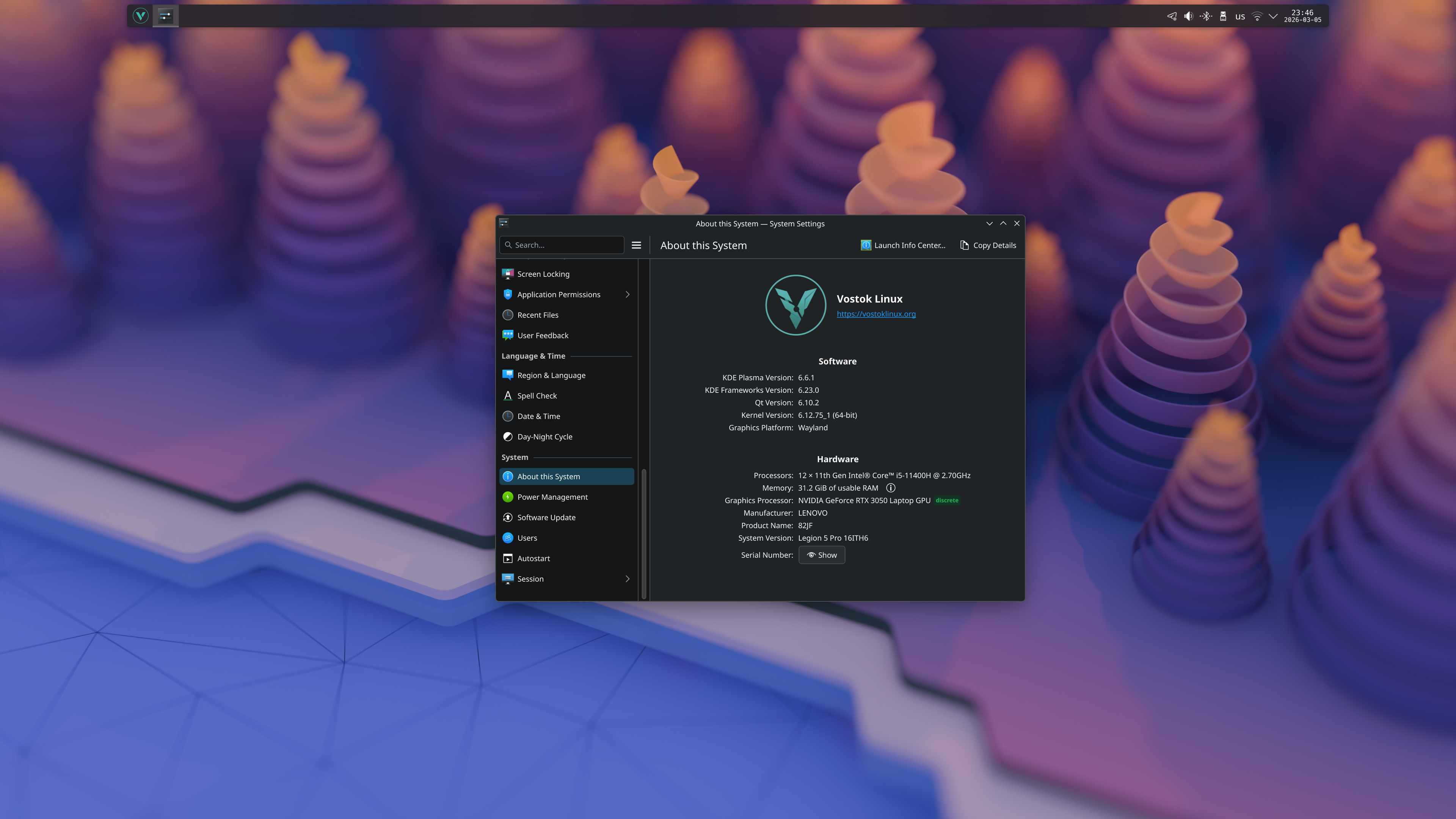
Everything Works Out of the Box
You don't need to configure anything to get started. Vostok Linux comes pre-configured with everything working from the first boot:
- Audio — PipeWire is running, your speakers and headphones work immediately
- Bluetooth — bluetoothd is active, pair your devices from the system tray
- Network — NetworkManager handles WiFi and Ethernet automatically
- Display — Mesa or NVIDIA drivers are active depending on your edition
- KDE Plasma — fully functional desktop with all integrations in place
- Discover — software center ready to install more applications
- Flatpak — add Flathub with one command and unlock thousands of apps
Everything you need to get productive is already there.
First Thing — Update the System
The first thing to do after any fresh installation is update all packages to their latest versions:
sudo xbps-install -Su
This ensures you have the latest security patches, bug fixes, and software updates from both the Void and Vostok repositories.
Customize Your Launcher Icon
One of the first things you might want to personalize is the application launcher icon in the taskbar. Vostok Linux supports our own logo as a launcher icon — here's how to set it up.
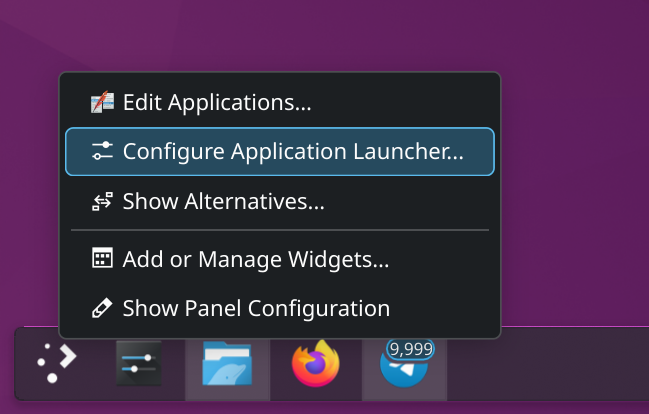
Right-click the launcher icon in the bottom-left corner of the taskbar and select Configure Application Launcher.
Click on the current icon to open the icon picker.
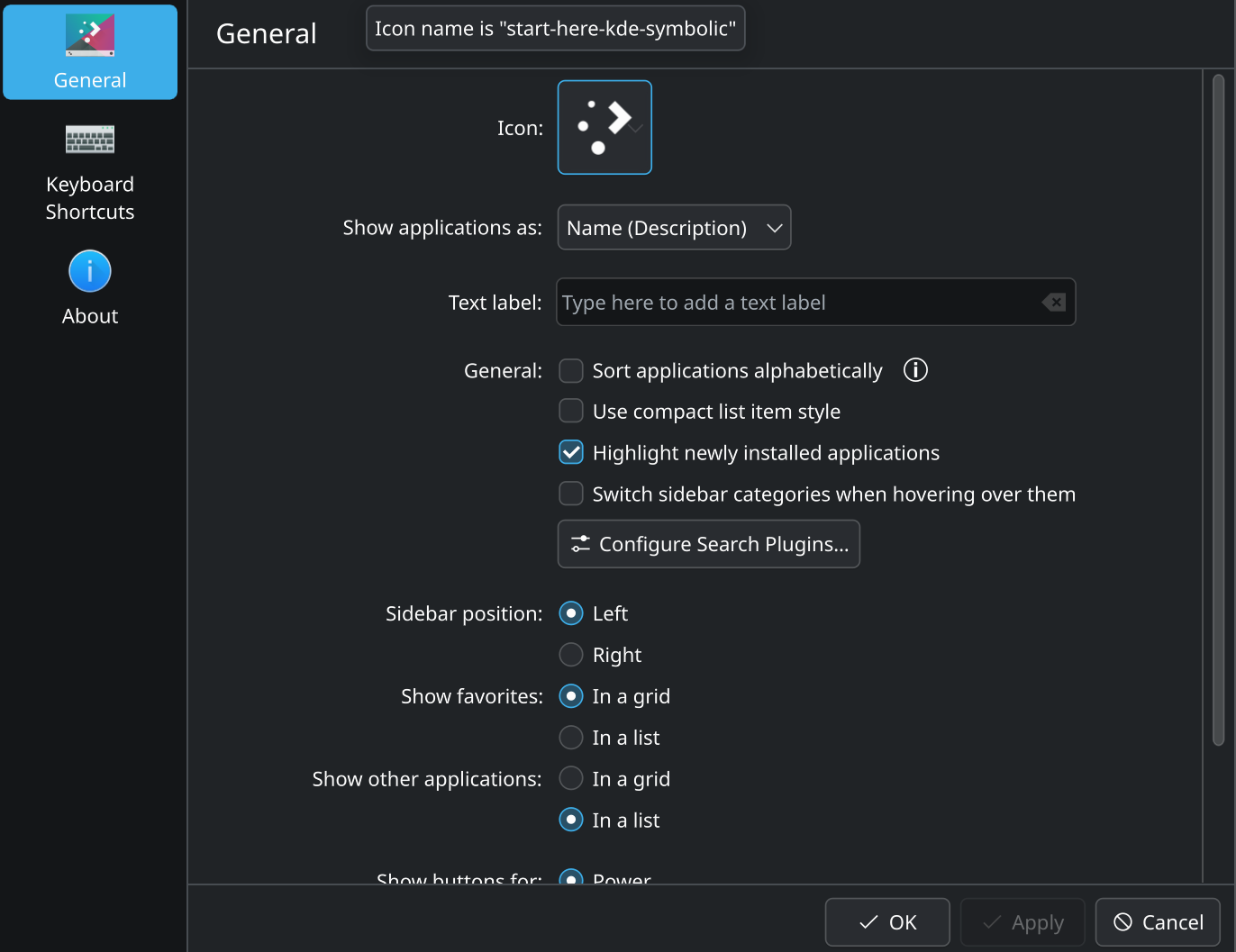
In the search field, type vostok or void — both will find the Vostok Linux logo.
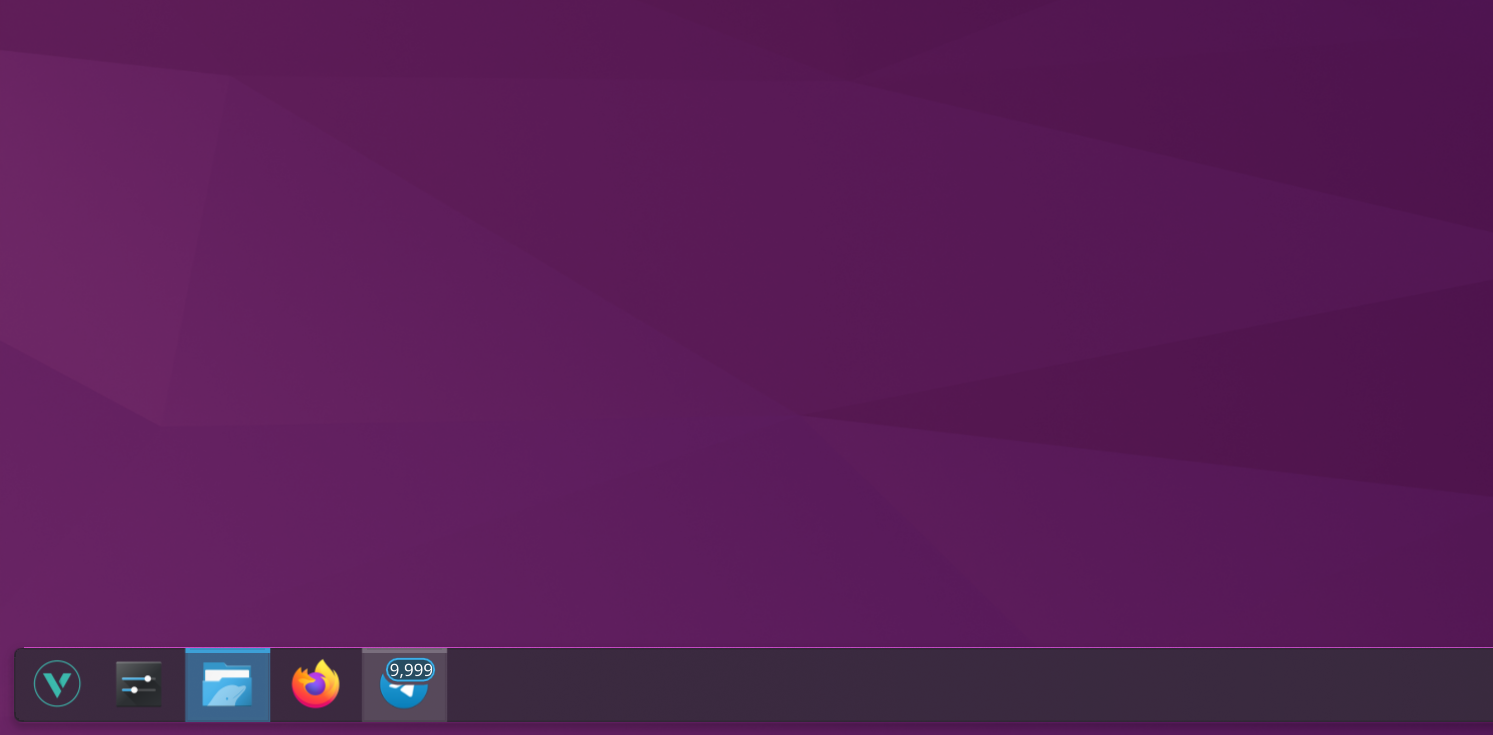
Select the Vostok logo and click OK.
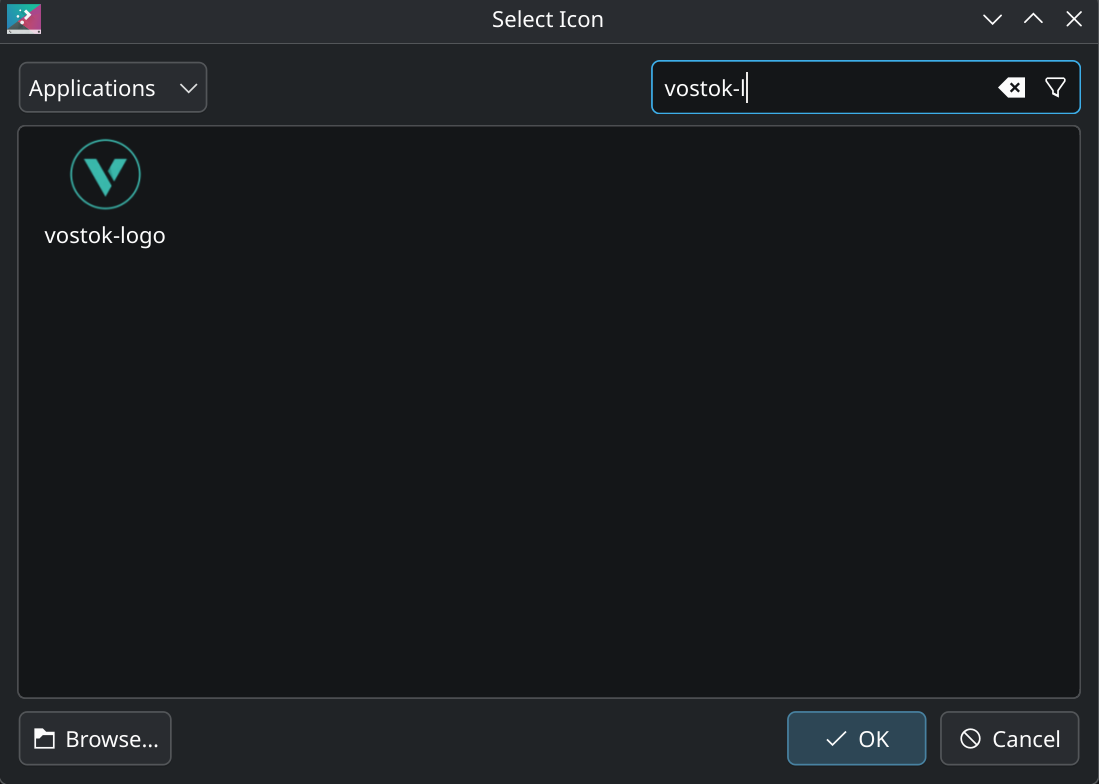
Your launcher now shows the Vostok identity. A small touch that makes it feel like home.
Add Flatpak Apps via Flathub
To unlock thousands of additional applications in Discover:
flatpak remote-add --if-not-exists flathub https://dl.flathub.org/repo/flathub.flatpakrepo
Restart Discover after running this command.
Add Your Keyboard Layout
If you installed with the us keyboard layout but use another language daily, add your layout in KDE:
System Settings → Input Devices → Keyboard → Layouts
Click Add and choose your layout. You can configure a shortcut to switch between layouts (commonly Alt+Shift or Super+Space).
What to Explore Next
Now that you're up and running, here are some things worth exploring:
- KDE Plasma guide — learn how to customize your desktop
- XBPS guide — master the package manager
- Vostok Repository — see what exclusive packages are available
- Audio — configure PipeWire and audio devices
- Display & GPU — set up monitors, resolution, and night color
- Bluetooth — pair headphones and peripherals
- runit — understand and manage system services
Need Help?
If you run into any issues or have questions:
- Check the FAQ — growing with community questions
- Visit our Telegram community
- Browse Void Linux Handbook — applies directly to Vostok
- Search ArchWiki — the gold standard of Linux documentation
Welcome aboard. The cosmos is wide open.
Добро пожаловать в Vostok Linux
Поздравляем — вы успешно установили Vostok Linux. Теперь вы часть чего-то построенного с заботой, независимостью и уважением к вашей свободе как пользователя.
С этого момента это ваша система. Минималистичная по умолчанию, бесконечная по возможностям.
Всё работает из коробки
Ничего настраивать не нужно. Vostok Linux поставляется преднастроенным — всё работает с первой загрузки:
- Звук — PipeWire запущен, колонки и наушники работают сразу
- Bluetooth — bluetoothd активен, подключайте устройства из системного трея
- Сеть — NetworkManager автоматически управляет WiFi и Ethernet
- Дисплей — активны Mesa или NVIDIA драйверы в зависимости от редакции
- KDE Plasma — полностью функциональный рабочий стол со всеми интеграциями
- Discover — центр программ готов к установке дополнительных приложений
- Flatpak — добавьте Flathub одной командой и получите тысячи приложений
Всё необходимое для работы уже на месте.
Первым делом — обновите систему
Первое что стоит сделать после любой свежей установки — обновить все пакеты до последних версий:
sudo xbps-install -Su
Это обеспечит актуальные патчи безопасности, исправления ошибок и обновления ПО из репозиториев Void и Vostok.
Смените иконку лаунчера
Одна из первых вещей которую захочется персонализировать — иконка лаунчера приложений на панели задач. Vostok Linux поддерживает наш собственный логотип в качестве иконки — вот как его установить.
Кликните правой кнопкой по иконке лаунчера в левом нижнем углу панели и выберите Настроить лаунчер приложений.
Нажмите на текущую иконку чтобы открыть выбор иконок.
В поле поиска введите vostok или void — оба варианта найдут логотип Vostok Linux.
Выберите логотип Vostok и нажмите OK.
Ваш лаунчер теперь показывает идентичность Vostok. Небольшая деталь которая делает систему родной.
Добавьте Flatpak приложения через Flathub
Чтобы открыть тысячи дополнительных приложений в Discover:
flatpak remote-add --if-not-exists flathub https://dl.flathub.org/repo/flathub.flatpakrepo
После выполнения команды перезапустите Discover.
Добавьте свою раскладку клавиатуры
Если устанавливали с раскладкой us но используете другой язык — добавьте свою раскладку в KDE:
Параметры системы → Устройства ввода → Клавиатура → Раскладки
Нажмите Добавить и выберите свою раскладку. Настройте горячую клавишу для переключения (обычно Alt+Shift или Super+Пробел).
Что изучить дальше
Теперь когда система запущена, вот что стоит изучить:
- Руководство по KDE Plasma — как кастомизировать рабочий стол
- Руководство по XBPS — освойте пакетный менеджер
- Репозиторий Vostok — эксклюзивные пакеты
- Аудио — настройка PipeWire и аудиоустройств
- Дисплей и GPU — мониторы, разрешение, Night Color
- Bluetooth — подключение наушников и устройств
- runit — управление системными службами
Нужна помощь?
Если столкнулись с проблемами или есть вопросы:
- Проверьте FAQ — пополняется вопросами сообщества
- Загляните в наше Telegram сообщество
- Справочник Void Linux — применимо напрямую к Vostok
- ArchWiki — золотой стандарт документации Linux
Добро пожаловать на борт. Космос открыт.